![Qvalia Logo New Blue transparent.png]](https://knowledge.qvalia.com/hs-fs/hubfs/Qvalia%20Logo%20New%20Blue%20transparent.png?height=24&name=Qvalia%20Logo%20New%20Blue%20transparent.png)
Where the currency is set
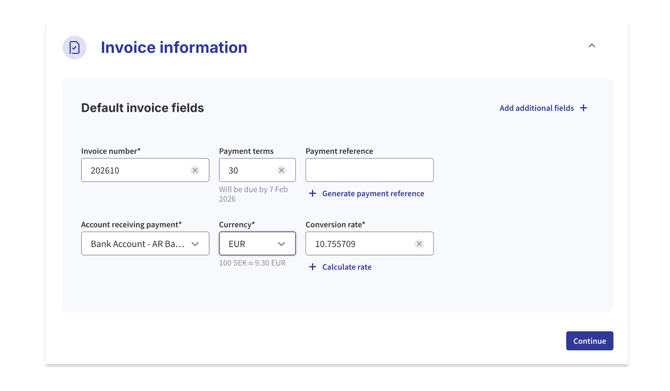
The currency is selected when you create an outgoing customer invoice or edit an existing draft:
-
Go to Sales → Invoices.
-
Click Create invoice (or open an existing draft invoice).
-
In the compose view, open the Invoice information section.
-
Use the Currency dropdown to select the desired currency.
The currency rate is set according to daily exchange rates and can be manually edited.
Default currency
-
The default currency shown in the dropdown is the company currency that was set when the account was created.
-
This default currency is automatically preselected for new invoices.
Important:
The company’s default currency cannot be changed after the account has been created. If you need to invoice in another currency, you must select it per invoice in the compose view.
Conversion rate
If you select a currency that differs from your company’s default:
-
A conversion rate field is shown.
-
You can manually enter a rate or use the prefilled exchange rate, which is automatically updated daily.
Things to keep in mind
-
Currency can be changed only while the invoice is in draft.
-
Once an invoice is sent or finalized, the currency cannot be modified.
-
Make sure the selected currency aligns with your customer agreement and payment setup.
Need help?
If you are unsure which currency to use, cannot see the currency dropdown, or have questions about default currency settings, contact Qvalia support at: help@qvalia.com.