![Qvalia Logo New Blue transparent.png]](https://knowledge.qvalia.com/hs-fs/hubfs/Qvalia%20Logo%20New%20Blue%20transparent.png?height=24&name=Qvalia%20Logo%20New%20Blue%20transparent.png)
Requirements
-
An active Qvalia account
-
A subscription plan that includes API access (Medium, Plus, Partner or Enterprise)
-
Permission to manage company settings
How to create and retrieve your API key
-
Log in to your Qvalia account.
-
Go to Settings in the main menu.
-
Select Company under General settings.
-
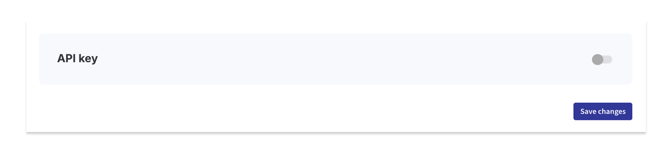
Scroll to the API key section at the bottom of the page.
-
Toggle the API key switch to ON. When the toggle is activated, an API key is generated and shown in an information modal.
- Click Save changes if required.
Important:
-
The API key is displayed only once.
-
Copy the key and store it in a secure location before closing the modal.
-
Once the modal is closed, the key cannot be viewed again.
If you lose your API key
If you no longer have access to your API key, you can:
-
Return to Company settings
-
Generate a new API key by toggling the API key setting again
Note that the previous key will be replaced and will no longer work.
Secure handling of API keys
-
Treat your API key as a secret.
-
Never share it in plain text via email, chat, or public repositories.
-
Use secure secret management solutions in production environments.
Access to the sandbox environment
Access to the sandbox environment is not enabled by default. If you need sandbox access for testing or development, please contact Qvalia support: help@qvalia.com. Include your organization name and a brief description of your intended sandbox usage.
Need help?
If you do not see the API key option in your settings or are unsure whether your plan includes API access, please contact Qvalia support at: help@qvalia.com.